Welcome to the complete guide, where we will learn common steps to protect your WordPress website and to secure your WordPress site from online threats. The digital world has become more dangerous for everyone entering it, and securing a WordPress site has become an important task for individuals and companies around the globe, from small bloggers to large e-commerce businesses and organizations. In 2026, an entrepreneur needs to be responsible for the security of his website.
Security tells a lot for individuals, entrepreneurs, and businesses, whether it is necessary to attract more visitors or boost the website’s ranking.
Being a website owner or blogger is a huge responsibility that requires close attention to security issues, not just for website owners themselves, but also to protect their web pages, business information, and the information of their clients and customers.
Thus, whether you are a beginner entrepreneur or a professional developer entering the internet business environment, you will need to be fully equipped to handle the responsibilities of your website security. Follow these steps to protect your WordPress website outlined guide, you will be able to create a stronghold for your site where not only your data but also your customers’ information will be safe and sound.
Table of Contents
ToggleBased on the Report
We have investigated many popular websites and extracted these reports to learn the actual number of cyber threats, mainly website security.
Based on the Federal Bureau of Investigation’s Internet Crime Report, in 2024, 859,532 complaints were registered on suspected internet crime and losses exceeded $16 billion, which is a 33% increase in losses from 2023.
According to searchenginejournal.com by Roger Montti, over 11,334 new vulnerabilities were found in the WordPress ecosystem in 2025, which is a 42% increase compared to 2024. And over new vulnerabilities found, 4,124, i.e. 36% are considered an actual threat and are serious enough to require RapidMitigate protection rules.
According to swif.ai – WordPress Security statistics for 2026 ft: Wp2shell published article- 11,334 New WordPress vulnerabilities were found in 2025, which is 42% over the year. 91% of new WordPress vulnerabilities were found in plugins, and 4.44 Millions blobal average cost of a data breach.
Moreover, more severe vulnerabilities were discovered in the WordPress ecosystem in 2025 compared to the combined two years.
What is WordPress Security and Why Does Website Security Matter?
Here are some common vulnerabilities for a weak security website.
Understand Some Common WordPress Security Threats
Brute Force Attack: It is a trial-and-error method where attackers use automated software to guess the username and password combination every second. They mainly target default entry points like the login page (wp-admin) and usernames like “admin”.
Malware Infection: A malware infection means adding code to your website that allows bypassing the normal login and re-entering the website at any time. Another malware infection is done to send your visitors to spammy, adult, or phising website.
SQL Injection: SQL injection occurs when a website fails to clean or validate user input. If a contact form, search bar, or comment field is vulnerable, an attacker can input SQL code directly into that field.
Cross-Site Scripting (XSS): Cross-Site Scripting is a process where attackers inject malicious JavaScript into an otherwise trusted WordPress website. When a visitor visits a page containing injected script, their browser executes it automatically.
Cross-Site Request Forgery (CSRF): CSRF, it relies on tricking an authenticated user into executing an action they didn’t intend to make.
Distributed Denial of Service (DDoS): A DDoS is not used to steal data or crack password, they are used to take your website offline.
File Inclusion and Remote Code Execution(LFI): LFI occurs when a poorly written plugin allows an attacker to manipulate the file path, forcing the service to read and expose sensitive local files hosted on that machine.
36 Steps to Protect Your WordPress Website in 2026
- Keep WordPress Core, Themes and Plugins Updated
- Use a Strong and Unique Password
- Implement Two-Factor Authentication (2FA)
- Secure Hosting Environment
- Install SSL Certificates
- Install a Security Plugin
- Limit Login Attempts
- Rename Login URL
- Disable XML-RPC
- Perform Regular Backups
- Install a Web Application Firewall (WAF)
- Use Only Secure Themes and Plugins
- Choose Quality Over Quantity
- Limit File and Directory Permissions
- Implement a Content Security Policy (CSP)
- Disable Directory Listing
- Monitor for Malware and Intrusions
- Regularly Audit User Accounts
- Hide WordPress Version
- Perform Regular Security Audits and Penetration Testing
- Stay Informed and Educated
- Use a Content Delivery Network (CDN)
- Use a Secure File Transfer Protocol (SFTP)
- Secure Your Database
- Regularly Review and Update Security Plugins
- Disable Unused Themes and Plugins
- Implement IP Whitelisting
- Implement Brute Force Protection
- Regularly Review Logs and Audit Trails
- Use Security Headers
- Educate Your Users
- Regularly Test Website Performance
- Implement Geographic Blocking
- Use a Security Information and Event Management System (SIEM)
- Implement Data Loss Prevention (DLP) Measures
- Secure Your
wp-config.phpFile
Keep WordPress Core, Themes and Plugins Updated
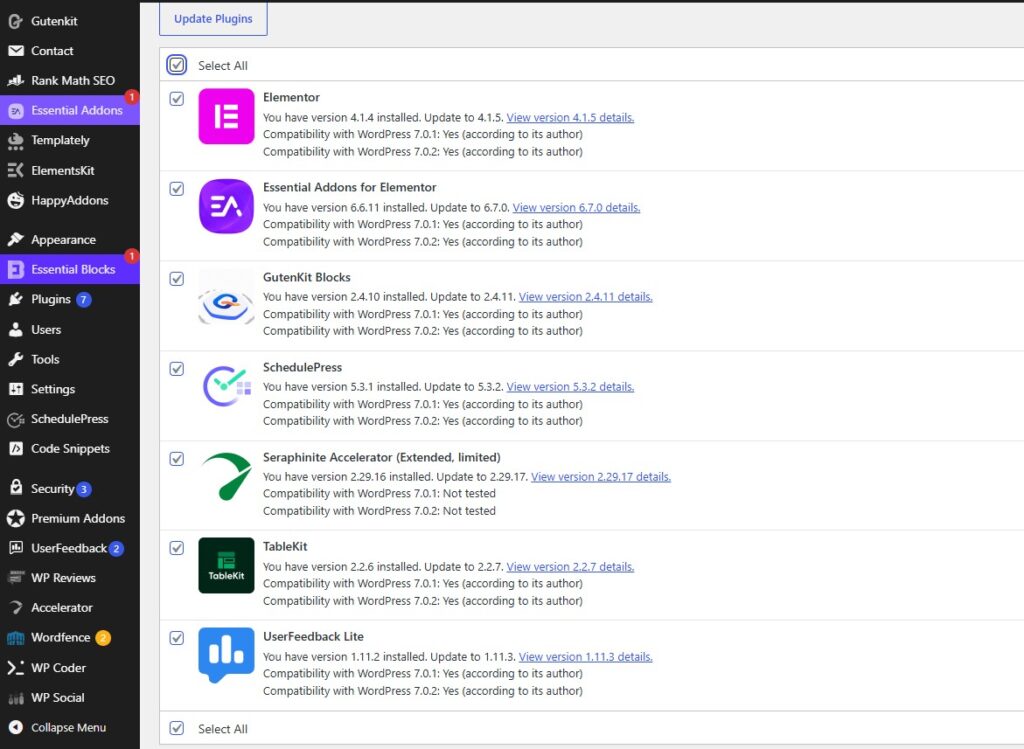
Regularly performing updates on the WordPress core, themes, and plugins is crucial rather than just a recommended practice, for keeping a safe and efficiently working site. For example, updates for the WordPress core include important security patches that protect your website from vulnerabilities, which can be used for malicious purposes. On the other hand, themes and plugins need to be regularly updated to make sure they enrich the functionality of the site and ensure that there are no security breaches and that the site works well with the newest version of WordPress. If you do not carry out updates of the WordPress core, themes and plugins regularly, you will need to deal not only with security problems but also other troubles relating to performance and compatibility of the site, affecting customer experience negatively.
In addition to doing regular updates on WordPress, themes and plugins, you will get a chance to enhance your website by using various updates offering new features and upgrades for your website.
Use a strong and Unique Password
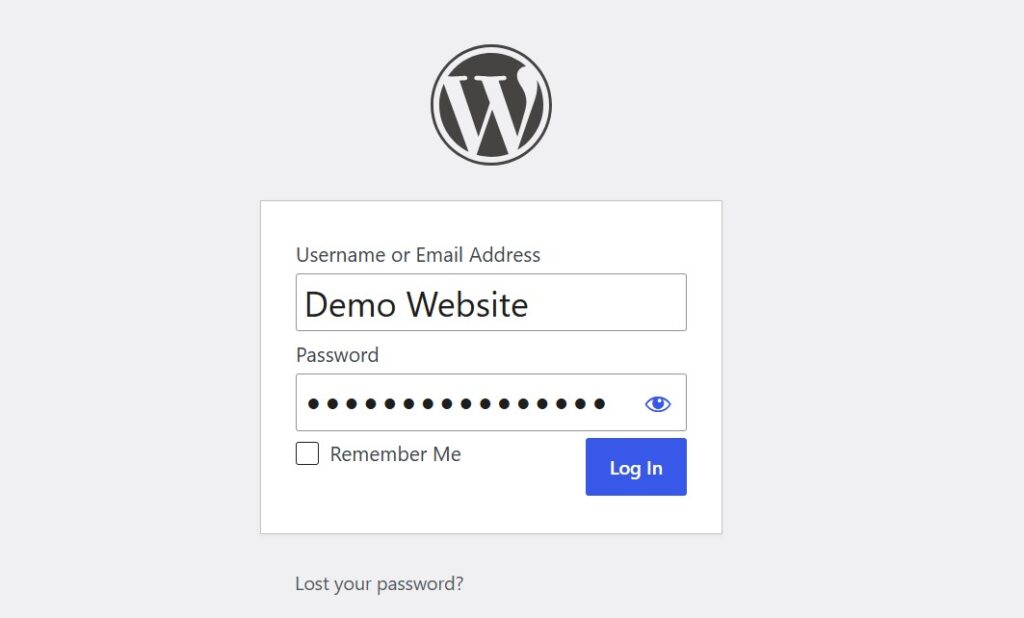
Using a strong and unique password is a fundamental step in securing your WordPress website. A strong and unique password acts as a defence against unauthorised access and potential cyber threats. When using a strong and unique password, the password should be a combination of uppercase and Lowercase letters, numbers, and special characters. This makes it resistant to brute-force attacks where automated tools attempt to guess passwords. This practice helps safeguard your website with sensitive data and information, reducing the risk of unauthorised entry and potential data breaches.
Also, you need to regularly update and change your password to enhance security further, reducing the likelihood of unauthorised entry and strengthening and protecting your website from unauthorised access to sensitive data and information stored on your WordPress website. Therefore, emphasising creating and maintaining a strong and unique website is essential for any WordPress owner looking to establish security maintenance and safeguard valuable data from your website.
Implement Two-Factor Authentication (2FA)

Secure Hosting Environment
The security of your website begins with the very foundation of your online presence: its hosting service. It is essential to select a trustworthy and protected hosting service because server-level vulnerabilities can put your website in danger. Therefore, look for a hosting service that is committed to continuously updating its software, providing firewall protection, and using malware scanning applications.
A secure hosting service also means greater uptime and performance, which benefit both your website visitors and your website’s reputation on the Internet. Take the time to research and choose a hosting service that has strong security protocols in place to ensure your website is protected against cyber threats.
Install SSL Certificates
SSL certificates are now an essential element of any website. SSL (Secure Sockets Layer) is a system of securing the data that is transferred between a user and the website. This effectively safeguards such information as user names and passwords, as well as payment information.
This certificate not only makes your website secure, but it also gives credibility to your website and even positively affects its SEO. Websites that have “https://” in their URL and a small padlock icon are much easier for their visitors to trust. Setting up SSL is fairly simple, and it is often provided for free by hosting companies.

Editor’s Choice
Really Simple SSL
Really Simple SSL is one of the most powerful WordPress security plugins for enabling HTTPS and managing SSL certificates. It automatically detects your SSL certificate, redirects all traffic to HTTPS, fixes mixed content issues, and helps improve website security with minimal configuration.
✓ Free Version Available on WordPress.org
Install Security Plugin
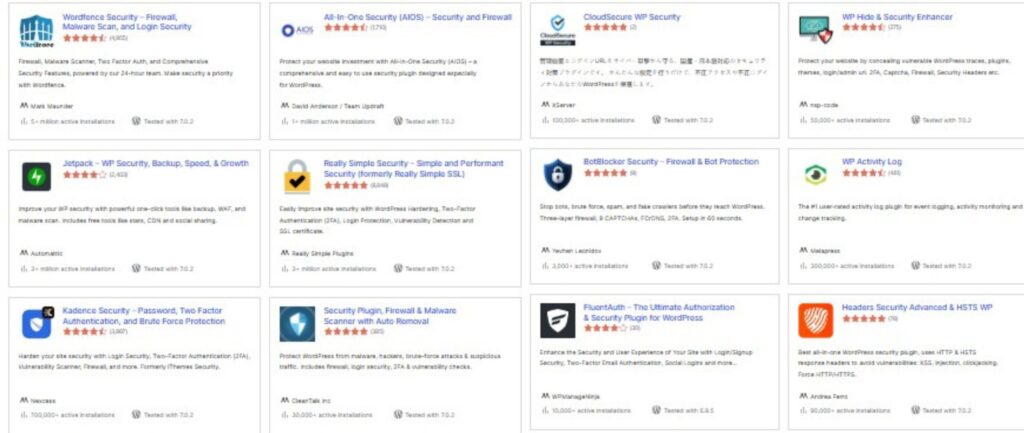
One of the most important tools for protecting your website, especially one running on the WordPress platform, is using security plugins. These plugins can provide various services to the site owner, such as scanning for malware, providing firewalls, and detecting threats in real time.
The right security plugin can help with automating a lot of routine security work. It can notify you about any suspicious activities, block bad IP addresses, and perform a lot of other functions in the background.

Wordfence Security
Wordfence provides enterprise-grade firewall protection, malware scanning, login security, and real-time threat intelligence to keep WordPress websites secure.

Sucuri Security
Sucuri Security protects your website with malware detection, file integrity monitoring, blacklist monitoring, and security activity auditing.

All-In-One Security (AIOS)
AIOS strengthens WordPress with firewall rules, brute-force protection, login security, file protection, and database security tools.

Solid Security
Formerly iThemes Security, Solid Security protects your WordPress website with login security, malware scanning, backups, and two-factor authentication.

MalCare Security
MalCare offers one-click malware removal, intelligent firewall protection, vulnerability scanning, and cloud-based security scanning.

Jetpack Security
Jetpack Security combines backups, malware scanning, spam protection, downtime monitoring, and brute-force attack protection in one plugin.
Limit Login Attempts
One of the simplest yet most effective steps for security is to restrict logins. This protects you against brute-force attacks where hackers may try hundreds of thousands of combinations of usernames and passwords. Setting limits for failed logins means that after a few breach attempts, suspicious logins may be blocked.
Several security plugins have this feature built-in; alternatively, you can often set it yourself via your server or CMS.
Limiting the number of times one may be able to log in will make your site better protected and discourage unwanted attempts by making it more complicated to breach it.
Following these steps will help you avoid several problems with your website in the future.
Rename Login URL
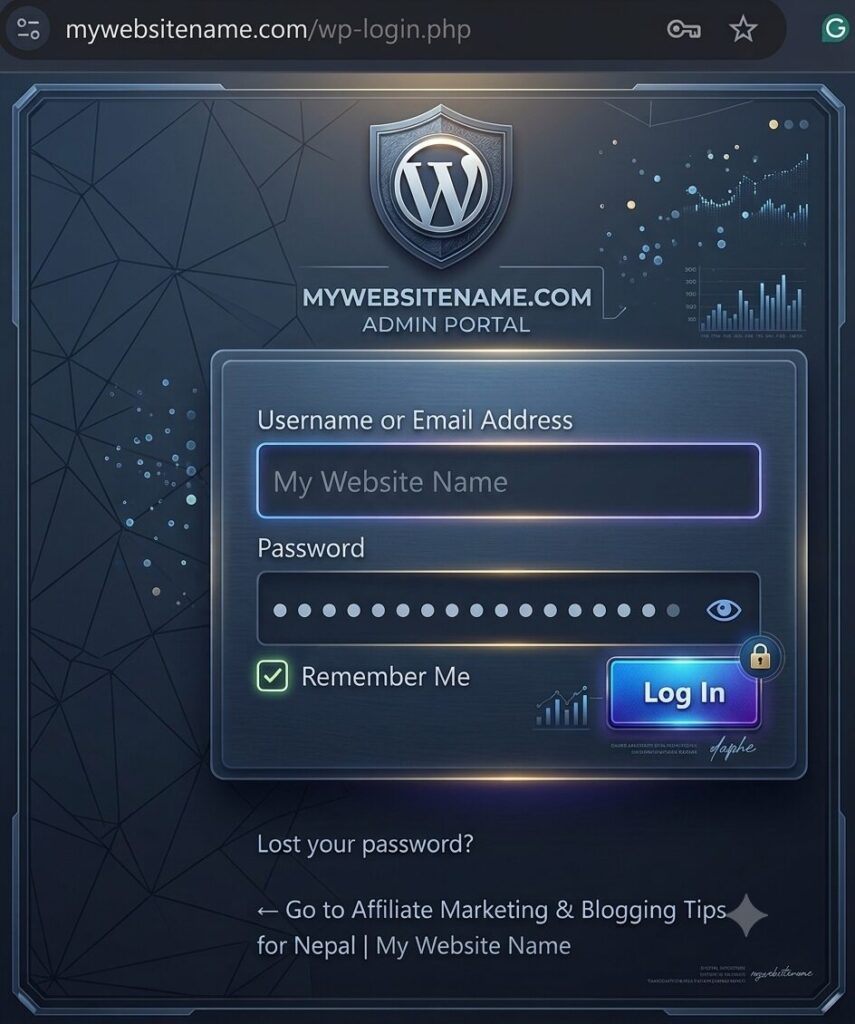
Changing the default login URL of your website (like /wp-login.php in the case of WordPress) to a personalised address is an effective yet simple security measure. Since default login URLs are familiar to many hackers who may use scripts to gain unauthorised access to websites, it is needless to mention that changing the login URL means concealing the login page from bots and reducing the possibility of brute force attacks.
An additional advantage of this move is that attackers should first find out the new login URL before they try to hack into your website. This change decreases the overload of your server caused by repeated login attempts to the default URL as well. Most security plugins have the option of changing login URLs without the need for coding.
Turn Off XML-RPC
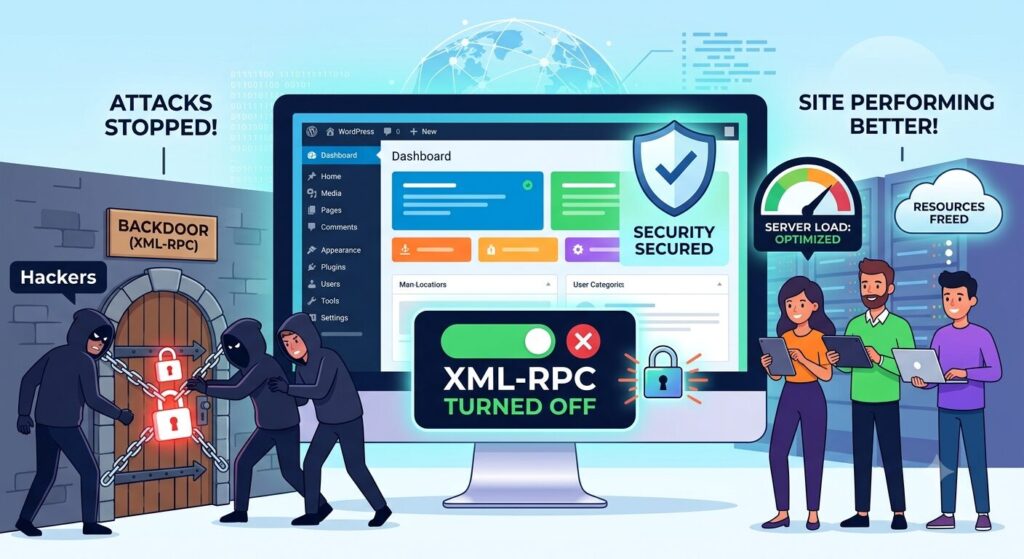
XML-RPC is a remote process that connects your WordPress website with various apps. Though it is extremely beneficial due to its ease, it has several crucial drawbacks. If it is not disabled when not needed, it leads to security threats. Hackers make use of this process to send numerous brute-force login attempts to the website with several different password combinations.XML-RPC can also be exploited in Denial-Of-Service (DOS) attacks to overload the website and cause it to collapse.
It is advised that if your website doesn’t deal with the remote publication of articles and is not used for other apps, you must turn it off. Turning off XML-RPC will help reduce the attack surface and thus avoid unauthorised login attempts. It is an easy task to disable XML-RPC by installing some security plug-ins and by writing the desired code into the configuration file, provided that XML-RPC is not required for the necessary programs and features and turning it off does not affect normal operations.
Regular Backups
This practice is essential to carry out an effective online business security plan. A backup is a replica of your site’s data – it includes files, databases, plugins, themes, and all content – with updated time-stamped settings and code. If your data is backed up, then your site is recovered. If your data is not backed up, the data will be irretrievable in the case of an accident such as an unexpected server outage or a hacking attack, which will not only delay the recovery time but may be prohibitively expensive as well.
Schedule automatic daily backups for frequently updated content and automated weekly or monthly backups for static content, and consider using offsite backup services that save copies of data to the cloud or remote servers.
It’s a good practice to periodically test restore operations on your backups to verify they are functioning properly.
As we’ve said, automated backups will safeguard you from any of those security attacks and provide business continuity.
Install a Web Application Firewall (WAF)
A Web Application Firewall (WAF) plays an important function in protecting any website because it monitors and filters the HTTP traffic passing between the World Wide Web and your web server. While standard firewalls act as barriers by analysing your website’s IPs and port figures, WAF operates on the software level and protects towards web app-focused security risks including cross-site scripting and SQL injection, document insertion and other attacks that can compromise software-based system vulnerabilities. By evaluating the site visitors being received into your website, a WAF may possibly block threats before they arrive at your software. A WAF could be put in locally on the gadget or on the web.
Several modern WAF answers update immediately, offering intelligence from worldwide community governments so that they can be familiar with modern-day security and vulnerability threats. This kind of WAF answer is critical for organisations needing to shield sensitive data, and those internet sites which see quite a bit of website traffic. The presence of a WAF on the web makes it far more stable and protected for end-users to access.
Use only Secure Theme and Plugins
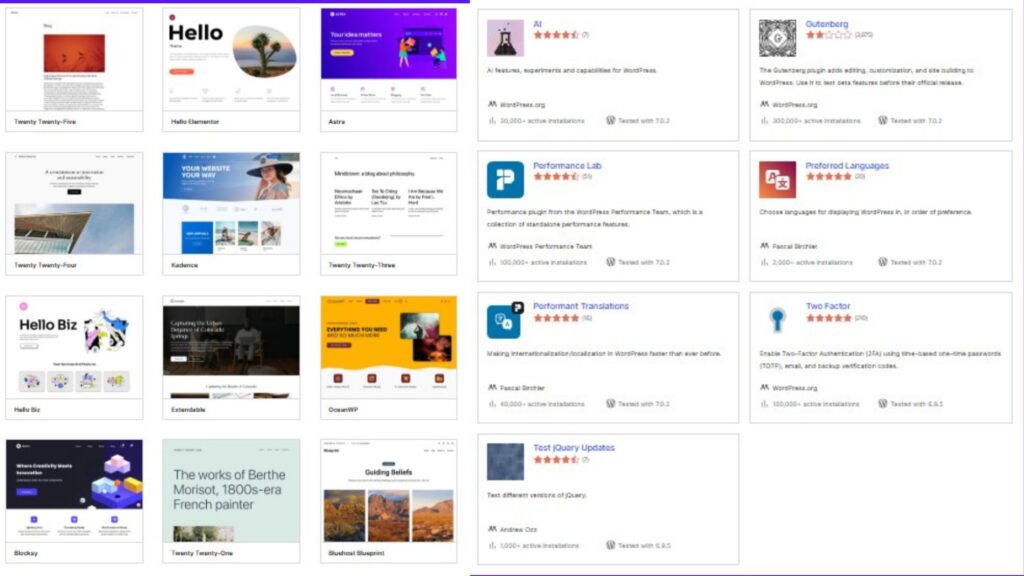
WordPress CMS platform comes with many great features, which make it vulnerable as well. This is because when downloading a theme or plugin from an unreliable source, one does not know what code is contained in that particular file and whether it has any backdoors. As a result, a website might be hacked as soon as it is downloaded.
Using a theme or plugin coming from a trusted resource like the WordPress official directory is the only safe way of downloading this software. One should also make sure to read reviews regarding the particular software and find out how popular it is from the installation numbers and when it was last updated. In other words, any software that was not updated for more than a year will most probably not work with newer versions of WordPress. Furthermore, it is recommended not to use any “nulled” or cracked premium plugins since they may seem like a great deal for anybody, but at the same time, there might be some malware involved. Best to stick only to trusted developers and pay attention to the permissions of plugins on one’s website.
Choosing Quality over Quantity
Although you may want to install each plugin offering interesting features to your site, the fact is that the more plugins and themes you use, the bigger the attack surface on your site is. Each plugin is a piece of code written by someone; thus, it increases vulnerability.
Instead of cluttering your site with several plugins, make an emphasis on their quality. Ask yourself whether you really need that plugin and whether it can be replaced by another tool or custom code. A properly structured installation of WordPress is not only safer, but it also loads faster and has a good management process. You should regularly monitor the presence of the plugins and themes you use and get rid of every plugin that you do not use, even if it is disabled. Whenever you decide to add anything new, think about whether it was created by reliable developers who update software regularly.
Limit File and Directory Permission
Permissions for files and directories state who can access and exploit data on your server, which means that if anyone has excessive access rights, it becomes easier for a hacker to play with files on your website, introduce a virus into your system, or breach sensitive data. To illustrate, think of permissions as locks you use for doors because you definitely wouldn’t want all doors in your house open to anyone.
The common recommendation for WordPress is that directories should be assigned with 755 instead of 666, which means that the owner will have read, write, and execute permissions, while all others will only have read permissions for files. The wp-config.php should be handled with more care, and it should be set either to 600 or 440 in order to restrict access. You can check permission settings through the hosting control panel or an FTP client, but you should stay away from setting them to 777 because accessibility of this kind is a severe security risk.
Implement a Content Security Policy (CSP)
A Content Security Policy (CSP) is essentially like an inspector of the activities happening on your site. This is a list of instructions that you write down to inform the browser which sources can distribute whatever content you want, resulting in a bunch of different webpages like scripts, images, fonts, CSS files, and so on. This is a good measure against the harm of cross-site scripting (XSS) attacks when malicious programmers introduce malicious scripts to your website, causing it to commit fraud, steal funds from its visitors, and so forth.
With the help of the Content Security Policy, you create the list of authorised sources when you tell the browser that scripts can be taken only from your website, which is quite important when you have comment blocks, contact forms, or anything else which enables people to leave some information. You can set up the device through the server settings or through the configuration of a respective file called .htaccess or through the special security program that deals with these processes. The only thing that you should do is to conduct some tests to define an acceptable CSP workable for your website.
Disable Directory Listing
The directory listing refers to a function that enables a web server to show users a list of files within a directory in case there is no index file. While this function may seem innocuous, it can be very engaging for hackers. They get access to the directories, see which plugins are outdated and find backup files, as well as find and access sensitive configuration files.
Disabling the directory listing is easy, as you can simply disable it by adding a piece of code “Options -Indexes” in your .htaccess file that prevents the server from showing directory contents if there is no index page. You may also use the feature included in many security plugins, so you won’t have to interact with code if you don’t have expert skills. After the directory listing has been disabled, the users trying to see the contents of directories will see a warning “403 Forbidden” instead of information about files contained in the folder.
Monitor for Malware and Intrusions
The use of security plugins—such as Wordfence, Sucuri, and MalCare—will help you to do just that. The mentioned plugins are constantly scanning files and databases for signs of phishing and alerting users as soon as any suspect is detected. They will help not only with something that businesses may call “malicious activities” but also monitor paths of suspicious logins, changes in files, and even spikes in web traffic.
Yet, prevention alone will not guarantee protection against cyber attacks. Hence, monitoring is an integral part of the process. It helps you to identify malware before it stretches out its tentacles through your files, database, and even plugin codes to steal data or redirect your users to malicious websites.
Regular Audit User Accounts
Over time, WordPress sites are likely to collect user accounts that belong to users, contributors, guest authors, ex-employees, or clients, all of whom no longer utilise their accounts. Every one of these accounts can be a potential doorway for hackers, especially if the passwords are weak or if the account gets more than it needs to have. An abandoned admin account that has an old and easy-to-guess password is an invitation for trouble.
Habitually checking user accounts every few months will do you a world of good. Disable or delete any accounts that you do not use, and check again if the active users only have the permissions they need for the job. Not everyone has to be an admin. The less permission the user has, the more secure the account is, even if it is compromised. Do not forget about the importance of strong passwords. Additionally, an extra step in the two-factor authentication process might not hurt either.
Hide WordPress Version
WordPress shows the number of the software version both in your site’s code and the readme.html file, or even RSS feeds, by default. However, even such a trivial detail provides a hacker with useful information. Once a person knows the precise version of WordPress installed on your site, he or she can search for vulnerabilities related to that particular version and use a prepared attack.
To hide your WordPress version is to remove that clue. This can be achieved either through inserting a code into the functions.php file of your theme or using a WordPress security plugin that will help you to turn this feature on with just a toggle switch. It is also a good idea to delete or restrict access to the readme.html file in the root folder of your WordPress. Although hiding the version will not stop a hacker who is eager to attack your site, it will discourage an automated bot and a casual hacker from moving on to attack someone else, as they normally try to find fast and easy ways to exploit your website.
Regular Security Audits and Penetration Testing
Security Audit – is an analysis of your site’s configuration, plugins, roles and code for potential weaknesses. Usually, this process includes both automated scanning with tools like WPScan, Sucuri SiteCheck and manual review. And the next step is penetration testing – a tester is actively trying to hack into your site. This approach can show you how secure your system really is, as not all vulnerabilities are obvious – there could be some weak point in your plugin that could be exploited only if someone tried to probe it manually through admin forms.
For most WordPress websites, professional pen-testing is not really required if your website doesn’t have sensitive data (payment information, health care, a large number of users, etc.). However, regular processes like scanning your website for vulnerabilities once per month, checking the WPScan database for vulnerabilities of your plugins and analysing .htaccess/wp-config.php files will help you detect most of the vulnerabilities. Perform such an audit whenever you make changes – add a new plugin, upgrade a theme or move to a new host. These are exactly those situations when some weakness can appear in your system.
Stay Informed and Educated
WordPress security is an ongoing effort, as vulnerabilities are discovered all the time, and the plugins you trust now might end up being vulnerable next week. By following WPScan’s vulnerability list, the WordPress security blog, and Wordfence’s threat intelligence feed, you will be able to learn about any zero-day vulnerabilities in your plugin within hours or days, and not several months after your site gets hacked.
It is also about your own practices — what a phishing email trying to attack WordPress administrators looks like, why it is bad to reuse passwords between different accounts, what kind of social engineering attacks can target your website, and so on. It is not something that you should learn once — just subscribe to several RSS feeds and newsletters from security sources you trust, and always keep your “how do I fix this” skills updated. Sites that are attacked the most are usually those where the administrator has been unaware of patches available for several weeks after their release.
Use a Content Delivery Network (CDN)
While CDNs such as Cloudflare and Sucuri CDN operate as middlemen, which serves static content (images, CSS, JavaScript) from nearby servers rather than the actual server to the visitors. However, the security advantage that CDNs offer is completely independent of speed improvement: a good CDN operates as a reverse proxy that masks the IP address of your hosting server with an IP address of the CDN’s network. Consequently, any direct attack (DDoS flooding, for example) will target not the hosting server but the network of the powerful CDN.
Most CDNs also include a WAF (Web Application Firewall) layer, which filters out malicious requests to your WordPress application. It blocks all traffic that contains known signatures of SQL injections, XSS, and bad bots without even sending these requests to your server with PHP. The free Cloudflare plan already offers you DDoS and SSL services as well, which means that CDN is among the most cost-effective security improvements for WordPress applications. Just be sure to properly configure your firewall/hosting to accept traffic from only those IP addresses which belong to the CDN.
Use a Secure File Transfer Protocol (SFTP)
FTP transfers your login details and all data in the form of plain text, meaning that any malicious party able to intercept FTP data can easily steal your login credentials. With SFTP (Secure File Transfer Protocol), on the other hand, the entire session is encrypted using the SSH protocol, and thus any intercepted traffic remains incomprehensible.
All respectable hosting services should now provide you with the option of SFTP; nevertheless, it’s a good idea to make sure that it is available to you and disable any possible FTP transfer in case it is still available. If your hosting company provides such an option, then make sure to switch from password-based authentication to SSH key-based: this would replace something you know with something you have, meaning that the former (password) is much easier to steal through phishing or simply guessing, while the latter requires possession of a physical file.
Secure your Database
WordPress database is considered the core of your site since it contains almost all the necessary data for the correct functioning of the site, including user accounts and passwords (encrypted in the database), posts, pages, comments, plugin configuration, theme configuration, and website options. Access to the database can be used to steal information from your site, to modify it, to inject malicious code, and even to destroy your website. Thus, it is extremely important to secure your database.
First, consider changing the default database table prefix (wp_) during the WordPress installation process. The fact is that the vast majority of SQL injection attacks that occur automatically are based on assumptions about default table names since attackers believe that any WordPress website uses standard prefixes. As such, by changing the wp_ table name to some random and unique prefix, you reduce the probability of automated attacks dramatically. Although this step will not provide you with sufficient protection against SQL injection, it still makes the life of any potential hacker much harder. Moreover, another best practice is to create a special user in the database who has only the minimum required permissions to work with your website.
Regularly Review and Update Security Plugin
The installation of a security plugin is among the most effective ways to keep your WordPress site safe; however, the mere installation of the security plugin is never enough. The same way as WordPress software, security plugins need to be updated and maintained on a regular basis because cybersecurity threats develop and change on a daily basis – new vulnerabilities appear, and attacks become more sophisticated. Many updates for security plugins contain new firewall rules, malware signatures, bug fixes, and compatibility enhancements; thus, an outdated security plugin will never be able to provide protection against the most recent threats.
In case your hosting company offers an option of updating trusted plugins automatically, you should use it; otherwise, you need to develop the habit of looking for updates at least once a week.
Updating the plugin is one of several maintenance actions. In addition, you must periodically check the settings of the plugin. Typically, security plugins are designed in such a way that the default parameters allow achieving fairly good results for many websites, but they do not offer optimal security for your particular site. The directories for scanning the website for malware might not include all the directories, or the firewalls might be set too loosely, or the login protection might be too lax for blocking brute force attacks. Thus, by adjusting the parameters, you can make sure that your site is protected to the necessary extent.
Another good practice is to review your plugin’s logs and reports on security issues. The logs will reflect any blocked attacks, login attempts that were rejected, any changes to files, detected malware, and other security events. This information should be analyzed in order to prevent possible problems.
Disable Unused Themes and Plugins
Many users of WordPress think that by disabling unused themes and plugins, it is possible to secure their website. Nevertheless, unused themes and plugins will still be installed on the server; thus, all their files will be available. In case an inactive plugin or theme possesses certain vulnerabilities, it is possible that hackers will be able to utilise it despite being inactive. Each additional theme or plugin creates another area that may be used to attack the website.
It is better to delete all unused themes and plugins from the website. You should have only those plugins that are needed for the functioning of your website and one default WordPress theme that can be used as an alternative. Before the deletion of a plugin, it is necessary to check whether there are other plugins depending on it.
Website maintenance is also made much easier by getting rid of any unnecessary themes and plugins. With less software installed, there will be fewer updates to worry about, fewer chances of any compatibility problems after updates to the core WordPress system and also no chances of any plugin conflict. Your website maintenance will become quicker, and your site will be more stable as well.
Apart from enhanced security features, removing unused themes and plugins may also help to improve website performance. It is true that inactive plugins do not run any code, but they can take up valuable server space as well as create bigger backups than they should.
It is always advisable to review what themes and plugins you have installed after some period of time. If you find something which you have not been using for a while, then it is best to uninstall it rather than keep it installed.
Implement IP Whitelisting
Another powerful tool that helps to protect web properties from attacks is IP whitelisting. It means that access to certain parts of your website will be available to trusted IP addresses only. Instead of opening administrative sections, login pages, and server management tools for any computer connected to the Internet, you create a list of devices or networks whose IP addresses are allowed to use them. All the other requests, originating from the IP address which is not included in the white list, will not be processed at all.
The main idea of IP whitelisting is to make sure that only legitimate people are able to access sensitive websites’ locations. This method is especially effective when applied to services like WordPress admin panel, phpMyAdmin, SSH, FTP, cPanel, or other hosting control panels because they give full control over your website and server. Even if somebody manages to obtain your credentials, they would not be able to log in.
IP whitelisting is especially effective for users who have fixed IP addresses. If you usually control your website from your work or personal computer, then you can allow yourself administration access from that particular computer only.
There are several drawbacks to this security method as well. If a user has a dynamic IP address and the internet service provider gives him a new one regularly, he needs to change his list accordingly. Fortunately, most hosting services make this process very easy.
Although IP whitelisting shouldn’t be the only security system implemented by your website, it becomes a very important additional one. Using it along with a password, two-factor authentication, firewalls, and login protection makes the process of breaking into your website significantly harder.
Implement Brute Force Protection
Among the popular ways that hackers utilise to access WordPress websites without permission is a brute force attack. A brute force attack involves automated scripts which try various combinations of username and password over and over again until the correct combination is obtained. The automated nature of such an attack enables hackers to make thousands of login attempts very quickly. Websites that employ easy-to-guess passwords, common names for users, and unlimited login attempts are highly susceptible to such an attack.
One of the best countermeasures to a brute force attack is the limitation of failed login attempts. Once a user tries to log in using the wrong login details a couple of times, the website puts a temporary hold on any other attempt by the user.
Another method is implementing CAPTCHA and Google reCAPTCHA on your login page. CAPTCHA requires users to solve a puzzle or challenge that cannot be solved by automated bots, which helps to prevent most brute force software from accessing your login page. You can add an additional layer of security to your site by implementing two-factor authentication (2FA). This will require the user to provide a second factor of verification along with their username and password, such as an authentication code provided via an authenticator application.
Implementing strict password policies is critical to protecting against brute force attacks. All users should use lengthy passwords and include different cases, numbers, and special characters within their passwords. It is best to avoid using any common username, such as ‘admin’, because this is usually the username that hackers try first.
Several WordPress security plugins are capable of detecting repetitive failed attempts, blocking suspicious IPs, and alerting you about any brute force attack on your website. In combination with the above-mentioned methods, this will give you several layers of protection against brute force attacks.
Regularly Review Logs and Audit Trails
The logs generated on your website give a full account of what takes place within your WordPress website. They may include user logins, login failures, file edits, plugin installations, theme installations, administrator activities, among others. Reviewing these logs enables you to detect suspicious activity early enough to avert a security breach. Suspicious behaviour like multiple login failures by the same IP address might point to a brute force attack, whereas any unexpected changes in files may signal a malware infection. Website audit trails are particularly useful for websites which have more than one administrator because they allow you to see who conducted particular activities and when the activity was done.
Most of the security plugins for WordPress generate comprehensive activity logs, and some can even alert you about strange activities. Reviewing logs should be incorporated into your website maintenance schedule rather than only being done in the event of a breach. The early detection of such activities will enable you to take timely action, such as blocking suspicious IPs, restoring tampered files and reducing any possible damage.
Use the Security Headers
Security headers are specific HTTP response headers that tell web browsers how to work with and secure your website’s content. Though users won’t be able to see security headers in action, they offer valuable protection from a variety of web attacks. The Content Security Policy header prevents XSS attacks by allowing only certain scripts and resources for your browser to use.
The X-Frame-Options header secures your website against the clickjacking attack by not letting your site get into any malicious websites through frames. Headers like X-Content-Type-Options, Referrer-Policy, and Permissions-Policy help to mitigate other security issues by restricting the work of web browsers with different files and data sharing. Used together with HTTPS, security headers will considerably improve the security of your website while not affect the user experience.
Web servers, hosting companies, and some security plugins provide tools to add these headers with just a few clicks. As these headers are used to work with web browsers directly, they are an extra protection layer in case there are vulnerabilities on other levels of your site’s security.
Educate your Users
While the use of technology plays an important role in protecting website security, nothing can help if website users do not know about the basic elements of cybersecurity. In addition, human mistakes continue to be one of the major reasons for website security breaches. The website administrators, editors, authors, and other users should be aware of the necessity to generate powerful passwords, be able to distinguish phishing emails, avoid suspicious downloads, and protect their login credentials.
Even the strongest WordPress can be broken if a person does not realise what they are doing when giving away their password or installing suspicious plugins. Security awareness training is essential because it educates people about different threats and how to deal with them safely. One should motivate all website users to activate two-factor authentication as well as avoid reusing passwords on different websites.
Finally, it is crucial to remind website users that they need to keep their computers updated and safe from viruses. Creation of the security policy is also helpful because it prohibits the installation of plugins by anyone but administrators and forces them to change passwords regularly.
Regularly Test Website Performance
The need to test website performance is important not only because it ensures a good user experience but also because it ensures website security. The poor performance of a website can be an indication of something else, ranging from malware infection, poorly configured plugins, high resource consumption by the server, or malicious bots. It is thus very important to keep monitoring the loading speed, server response time, and resource consumption of your website so that you can easily spot any unusual activities. Using performance testing tools will help you discover some problems that could be occurring in your website, such as a script being broken, big image sizes, inefficient database queries, and plugins that are using up too much server resources.
This way, you can solve such problems and increase the speed as well as the stability of the website. You will also be able to know whether your recently updated plugins, themes, or security configuration have affected the website’s performance. Many security attacks, especially the DDoS attack, can cause performance issues to your website.
Implement Geographic Blocking
Geographic blocking or geo-blocking is a security mechanism which restricts access to a website depending on the geographic location or country of the visitor. If your website attracts customers from a specific region, blocking all traffic except from certain countries can significantly reduce malicious login attempts and automated attacks against your website. Most attacks against your website are launched from countries that have no valid reason to attack it. Blocking traffic from such countries can help you avoid unnecessary traffic and minimise the risks of any brute force attacks, vulnerability scans, etc. There are many web application firewalls (WAF), CDNs, and WordPress security plugins which include geographic blocking as one of the easy-to-implement features.
But using this type of blocking requires carefulness because it can block access to your website even for legitimate users. So before using this feature, it is important to analyse the traffic of your website and understand where your users are coming from. Geographic blocking can become a great addition to other security mechanisms like firewalls, login protection, authentication and monitoring.
Use a Security Information and Event Management System (SIEM)
SIEM stands for Security Information and Event Management. It refers to a highly developed system that collects, processes, and monitors security events in real-time from multiple sources. In contrast to the separate review of server logs, firewall activity reports, login attempts, application logs, etc., a SIEM tool allows combining all these pieces of information into one interface. This way, it becomes much easier to notice suspicious activities, spot potential security threats, and react to them in time. When talking about WordPress websites, a SIEM may monitor various events such as multiple login failures, unauthorised admin account creation, suspicious file modification, malware detection, and configuration changes.
The most valuable feature of a SIEM system is its ability to correlate various events that happened in different places. For example, a single failed login attempt on its own would not be considered malicious, but when it is followed by many login attempts from multiple IP addresses and file modification, it becomes clear that it is either a brute force attack or some kind of malware infection.
Implement Data Loss Prevention Measures (DLP)
Data Loss Prevention (DLP) entails a range of techniques and security measures that aim at protecting sensitive information from loss, theft, accidental exposure, and access by any unauthorised personnel. WordPress websites usually hold significant amounts of information, such as customers’ data, user accounts, payment details, contact forms, business documents, and other site-related materials. In case of any loss or breach of such data, it may lead to financial and reputational losses, legal troubles, and even the loss of customers’ trust. DLP measures can help to keep all valuable data safe for the whole duration of its lifecycle.
The best way to protect sensitive information is to limit access to it to the bare minimum. Apply the principle of least privilege and provide users only with permissions necessary for them to do their job. It would be reasonable to check the list of user accounts on a regular basis to eliminate any superfluous permissions or idle accounts. Also, sensitive files and backup copies of data should always be encrypted.
Automated backups are also an important element of the DLP system. These backups should be kept safe in remote or cloud-based servers and periodically verified for their ability to be recovered in case of disaster. File access and activity logging, together with the alerting mechanism, can also help identify any possible attempts at data theft.
With the use of access restrictions, encryption, backups, monitoring, and security training of users, DLP solutions can greatly minimise the chances of either accidental or deliberate data leakages. While there is no way to cover all of the risks with a single solution, a carefully designed DLP plan can provide several levels of security.
Secure your wp-config.php File
The wp-config.php file is one of the crucial files in a WordPress installation since it includes the configuration settings that will make your website work. This file will hold your database name, database username, database password, database host, authentication security keys, table prefix, and several other WordPress configurations. An attack on this file can result in access to your database, manipulation of your website, or theft of information. Protection of the wp-config.php file should be one of the primary concerns when it comes to WordPress security.
There are many things that can be done to increase its security, but one of the easiest methods would be setting proper permissions. On most hosting platforms, the wp-config.php file should have permissions such as 400 or 440, meaning that the file could be read only by the server and not modified by anyone else. It is also important to make sure that directory listings are not enabled on your web server, since this allows visitors to see all of your website files.
Another good security solution is to move wp-config.php one folder up from the root of your WordPress installation, assuming your hosting setup allows that. As WordPress is still able to locate the file, this will make it inaccessible through the public web directory and harder for the attackers to find. Moreover, you can restrict direct HTTP access to the wp-config.php file by configuring your web server (Apache/Nginx).
Finally, you should never share or publish your wp-config.php file, since it contains your very sensitive information. Make sure your WordPress installation, its plugins and themes, and the server itself are always up to date to minimise any possible vulnerabilities that could expose your wp-config.php file. By using the correct file permissions, server access limitations, secure backups, and maintaining good security practices, you will significantly decrease the risk of an attacker getting hold of one of the most important files of your WordPress website.
WordPress Security Checklist: 36 Best Practices Ranked by Priority (2026 Guide)
| WordPress Security Practice | Why It Matters | Recommended Frequency | Priority |
|---|---|---|---|
| Keep WordPress Core, Themes and Plugins Updated | Updates patch known vulnerabilities, improve stability, and protect your website against newly discovered exploits. | Immediately after updates | Critical |
| Use Strong and Unique Passwords | Strong passwords significantly reduce the risk of brute-force attacks and unauthorized account access. | Always | Critical |
| Implement Two-Factor Authentication (2FA) | Adds a second verification step, making it much harder for attackers to access administrator accounts. | Enable once | Critical |
| Choose a Secure Hosting Environment | Reliable hosting provides server-level security, malware protection, automatic backups, and firewall protection. | Review annually | Critical |
| Install SSL Certificate (HTTPS) | Encrypts communication between visitors and your website while improving trust and search engine rankings. | Always enabled | Critical |
| Install a WordPress Security Plugin | Provides malware scanning, login protection, activity monitoring, and firewall features. | Install immediately | Critical |
| Limit Login Attempts | Blocks repeated failed login attempts and helps prevent brute-force attacks. | Always enabled | High |
| Rename the Default WordPress Login URL | Reduces automated attacks targeting the default wp-login.php page. | Configure once | High |
| Disable XML-RPC | Prevents XML-RPC abuse that can be used for brute-force attacks and DDoS amplification. | If not required | High |
| Create Regular Website Backups | Allows fast recovery if your website is hacked, corrupted, or accidentally deleted. | Daily | Critical |
| Install a Web Application Firewall (WAF) | Filters malicious traffic before it reaches your website and blocks common cyber attacks. | Always enabled | Critical |
| Use Only Secure Themes and Plugins | Well-maintained themes and plugins reduce vulnerabilities and improve website stability. | Before installation | High |
| Choose Quality Over Quantity | Using fewer high-quality plugins reduces the website's attack surface and improves performance. | Review quarterly | High |
| Set Proper File and Directory Permissions | Restricts unauthorized access and prevents malicious modifications to website files. | Review after server changes | High |
| Implement a Content Security Policy (CSP) | Protects against Cross-Site Scripting (XSS) by controlling trusted content sources. | Review periodically | Medium |
| Disable Directory Listing | Prevents visitors and attackers from viewing sensitive folders and files. | Configure once | High |
| Monitor for Malware and Intrusions | Detects malicious code, file changes, and suspicious activities before significant damage occurs. | Daily | Critical |
| Regularly Audit User Accounts | Removes inactive users and ensures each account has the minimum required permissions. | Monthly | Medium |
| Hide the WordPress Version | Reduces information disclosure that automated bots may use to identify vulnerabilities. | Configure once | Medium |
| Perform Regular Security Audits and Penetration Testing | Identifies security weaknesses before attackers can exploit them. | Quarterly | Medium |
| Stay Informed About WordPress Security | Following security news helps you quickly respond to newly discovered vulnerabilities. | Ongoing | Medium |
| Use a Content Delivery Network (CDN) | Improves loading speed while providing DDoS protection and traffic filtering. | Always enabled | Medium |
| Use Secure File Transfer Protocol (SFTP) | Encrypts file transfers between your computer and web server. | Always | Medium |
| Secure Your Database | Protects customer information, website content, and configuration data. | Review monthly | High |
| Regularly Update Your Security Plugin | Ensures the firewall and malware definitions remain effective against new threats. | When updates are available | Medium |
| Remove Unused Themes and Plugins | Unused software can introduce vulnerabilities even when inactive. | Monthly | High |
| Implement IP Whitelisting | Restricts administrative access to trusted IP addresses. | As required | High |
| Enable Brute Force Protection | Automatically blocks repeated login attempts from suspicious IP addresses. | Always enabled | High |
| Review Security Logs and Audit Trails | Helps identify suspicious login attempts, file modifications, and unusual activities. | Weekly | Medium |
| Use HTTP Security Headers | Protects against clickjacking, MIME sniffing, and several browser-based attacks. | Configure once | Medium |
| Educate Website Users | Security awareness reduces phishing, weak passwords, and user-related security risks. | Regularly | Low |
| Regularly Test Website Performance | Unexpected performance changes may indicate malware infections or server issues. | Monthly | Low |
| Implement Geographic Blocking | Blocks traffic from regions where malicious attacks commonly originate when appropriate. | As needed | Low |
| Use a Security Information and Event Management (SIEM) System | Centralizes security monitoring, event logging, and threat detection for enterprise websites. | Continuous | Low |
| Implement Data Loss Prevention (DLP) | Protects sensitive customer and business data from accidental or unauthorized disclosure. | Quarterly | Low |
Secure Your wp-config.php File | Protects database credentials, authentication keys, and sensitive WordPress configuration settings. | Review periodically | Critical |
Conclusion
Moreover, the security of the website involves choosing a trustworthy hosting service provider that provides various security services such as firewall, malware protection, automated backup, and protection from DDoS attacks. Installing a good WordPress security plug-in, SSL certificate, file permissions, and security scans of the website helps enhance its security. Automated backup of the website and its storage in some other secure place will help in restoring the website in case there are any unexpected problems.
Also, the website owners must develop a practice of monitoring user activity, security logs, and auditing the security measures on a regular basis because cyber threats keep on changing. The best way to protect oneself from any harm would be to stay up-to-date with all the security vulnerabilities.
Indeed, securing your WordPress website goes beyond ensuring the safety of files and databases. It helps protect your reputation, customer data, search engine positions, profits, and even the trust of your website visitors. In case of any security breach, it might cost you money, website downtime, legal issues, and even ruin the reputation of your brand forever. Thus, putting effort into securing your WordPress website will be a great way to secure your website’s future and its sustainability.
Having many different layers of security, keeping up with the latest updates, using reliable and proven software tools and following recommended security procedures will help you minimise the risk of any cyber attacks and run your website smoothly. Keep in mind that good WordPress security consists of constant vigilance, preparation, and improvement.